Connect Homebase to bring worked time and published schedules into Spark. Your sales connection stays separate, so each Spark location can use Homebase alongside its existing POS.
Before You Start
- Request a read-only API key from Homebase API Settings. Homebase must approve the request before the key is available.
- In Spark, you need permission to edit settings and access to all locations to enter, reuse, or replace a token.
- The connector must be enabled for your Spark account. Contact Spark support if it is unavailable.
Homebase calls this credential an API key. Paste it into Spark's Access token field. Keep it private and do not include it in support messages or screenshots.
Connect a Location
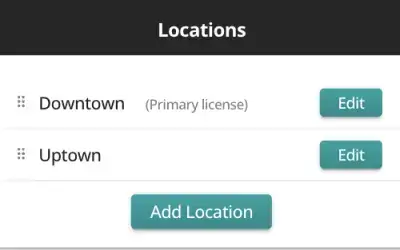
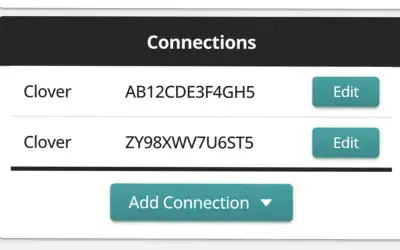
- Open Locations / Connections and select the Spark location.
- Choose Add Connection, then Homebase.
- Paste your approved key and select Check Token. Checking does not save the key.
- If several locations are available, select the matching Homebase location. Spark selects the only available location automatically.
- If another labor connection exists, choose when Homebase should start supplying labor data. The default is today; earlier provider periods are retained.
- Select Connect to Homebase to save the connection.
Spark checks for changes about every five minutes and imports timecards using its existing history limits. It reads worked time and published schedules, not time-off requests or availability. Spark does not change data in Homebase.
More Locations and Replacement Keys
Repeat setup for each Spark location. You can reuse a saved token or enter a key for a different Homebase account. Each Homebase location can be assigned only once within your Spark client. Retiring a connection stops updates but continues to reserve that Homebase location.
To replace a key, enter it on the existing connection, select Check Token, then Update Connection. Leaving before updating retains the saved key. The location mapping cannot change during replacement.
Spark updates other Homebase connections in your client that use the same old key, including retired connections. The replacement must still access all their mapped Homebase locations. Connections using different keys are unaffected, and retired connections stay retired.
Troubleshooting
- No available locations: Check whether the locations are already assigned to other Spark connections, including retired ones.
- Token rejected: Check the copied key and its status in Homebase.
- Replacement cannot access linked locations: Confirm that Homebase has granted the new key access to every location linked to the old key.
- Timecards or schedules unavailable: Check the account's API access with Homebase.
- Temporary failure: Try again. A timeout or rate limit does not necessarily mean the key is invalid.
This initial guide covers the verified API-key request and Spark connection workflow. Homebase-specific account approval details will be expanded as live setup is verified. Contact Spark support for help without sharing your key.