Connect 7shifts to bring employee, timecard, and schedule information into Spark for labor reporting. Add it to the Spark location where those employees work. Your sales connection stays separate, so you can use 7shifts alongside Clover or Square.
Before You Start
- Sign in to 7shifts as a company administrator.
- In Spark, you need permission to edit settings and access to all locations to enter, reuse, or replace a company token.
- The 7shifts connector must be enabled for your Spark account. If you do not see it under Add Connection, contact Spark support.
- Your 7shifts account must allow Spark to read your labor data. Timecard and schedule availability can depend on your plan. Webhook access is optional: Spark can check for changes automatically when it is unavailable.
1. Create an Access Token in 7shifts
An access token is a private code that lets Spark connect to your company. You do not need to write code or apply to the 7shifts partner program.
- Open 7shifts and select the company you want to connect.
- Open Settings, then Developer Tools.
- Under Access Tokens, select Create Access Token.
- Name it Spark so you can recognize it later.
- For the technical contact, choose an active company administrator who has signed in to 7shifts before and can receive notices about the connection.
- Leave the API version at its default, create the token, and copy it.
Keep this code private. It grants administrator-level access to the whole 7shifts company, not just one location. Paste it only into Spark's Access token field. Do not email it to support or include it in a screenshot.
2. Connect the Location in Spark
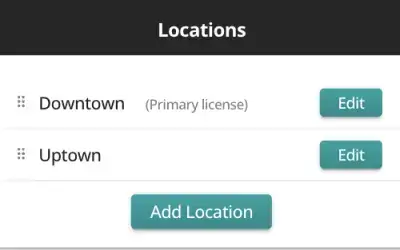
- Open Locations / Connections and select the Spark location you want to connect.
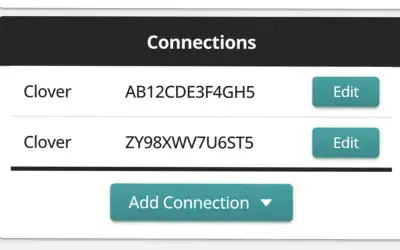
- Choose Add Connection, then 7shifts.
- Paste the code into Access token and select Check token.
- If Spark asks you to choose a company, select it and select Check token again.
- Select the matching 7shifts location. Check this carefully: an existing connection cannot be reassigned to a different provider location.
- If another labor connection exists, choose an Effective date. The default is today. With only one labor provider, Spark selects the history start internally.
- Select Connect to 7shifts. Checking the token alone does not save it.
Spark starts importing your labor data and sets up automatic updates. You do not need to configure those updates yourself in 7shifts. Spark uses instant change notifications when available; otherwise, after confirming it can read your labor data, it checks for changes about every five minutes. Spark checks for changes to webhook access automatically, including after a plan downgrade or upgrade.
Connecting 7shifts tells Spark to use it for labor reporting. Earlier labor source periods are retained when switching providers.
Connect More Locations in the Same Company
Repeat the Spark steps for each location. Instead of creating another token, choose a linked location under Saved token, then select Check Token and the matching 7shifts location.
Each 7shifts location can be connected only once within your Spark client. Retired connections continue to reserve their locations. Reusing a token requires access to all Spark locations and permission to edit settings.
If You Need to Replace the Token
Open an existing 7shifts connection, paste the replacement, select Check Token, then Update Connection. Use the same company and location. Leaving before updating keeps the saved token.
Replacing a token updates connections in the same Spark client using the same company and old token, including retired connections. The replacement must access all their mapped locations. Different tokens are unaffected, and retired connections remain retired.
Troubleshooting
- You cannot find Developer Tools: Ask your 7shifts company administrator to help with token creation.
- Check token fails: Copy the entire token again and confirm it belongs to the correct company.
- The connection stops working: Check whether the token's technical contact is still an active 7shifts administrator. If they lost administrator access or were deactivated, assign an eligible administrator to the token in 7shifts.
- Updates take a few minutes: When webhook access is unavailable, Spark checks for changes about every five minutes.
- Setup fails or updates stop: An invalid token, unavailable labor data, or a temporary 7shifts problem can still prevent updates. Check the message in Spark; lack of webhook access alone does not require you to upgrade your plan.
- Timecards or schedules are unavailable: Check access and subscription restrictions with 7shifts. An unavailable resource is not the same as having no shifts.
- The wrong location is shown: Return to the correct Spark location and check the company selected in 7shifts before connecting.
For help, email support@getaspark.com. Include the message you see, but never include your token.
The token-creation steps are based on 7shifts' access token instructions. The steps above are the ones you need for Spark; you can ignore the developer examples on that page.