This article is focused on adding a second location/device that is tracked separately from the first location/device. If you want to merge orders from two devices into one location, see How to Add a Second Clover or Square POS Device in Spark.
Steps to Add a Second Location
- Log out of your POS dashboard. This will ensure you don’t accidentally connect the wrong account in Step 3. For Clover, go to clover.com, click the Account button in the upper right corner, and then click Log Out. If you’re already logged out of Clover, you’ll need to log in and then log out. For Square, go to squareup.com/dashboard, click the business name in the upper right corner, and then click Sign Out.
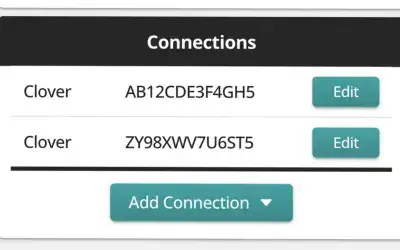
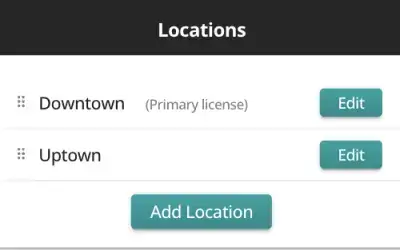
- In the Spark app, go to the Locations / Connections page (see screenshots below). Click the Add Location button and fill out the fields.
- Click the Add Connection button at the bottom of the page, and select the Clover or Square option.
- On the next screen, click Connect to Clover / Connect to Square. You will be prompted to log into your Clover / Square account, so make sure you log into the one you want to add.
At this point, the historical data for this location will be imported from your POS system. It may take a couple of hours to complete.
Multi-Location Features
When you add a second location, you’ll see an option at the top of the screen to switch between locations. This allows you to quickly review the current sales or the latest insights for that location. On the Trends page, you can set the Group By field to Locations to see sales by location over time (as one example). You can even look at one product across locations to see where the product is performing best. You can use the Locations filter to select which locations appear in the trend graph. On the Dashboard page, you can aggregate metrics across some or all locations. For example, if you want to see today’s sales for all of your locations, click the All button in the Locations section to see this rollup. Or click Multiple to choose which locations to show. At this time, Insights are specific to each location.
Next Steps
Please contact support@getaspark.com if you have any questions or run into any issues.